 ImageSizeDock
Resize image
Resize JPG, PNG and WebP to fit a maximum width and height without stretching. Preserve proportions, preview the output and download individual images or a ZIP.
Enable JavaScript to choose an image and use this tool. Processing happens on your device.
How to resize an image without stretching it
- Choose one image or a batch of JPG, PNG or WebP files.
- Enter Max width and Max height in pixels. These form a bounding box; the image keeps its original proportions.
- Choose the output format and quality. Enable Allow enlarging smaller images only when you need to upscale, then click Resize image.
- Check the output dimensions and preview. Download individual results or collect the batch in one ZIP.
Fit a 1600 × 1200 photo inside 800 × 800
Set Max width to 800 and Max height to 800. A 1600 × 1200 source becomes 800 × 600 because its 4:3 proportions are preserved. To get a square image instead, crop it to 1:1 before resizing.
Frequently asked questions
Why is the result not exactly the width and height I entered?
The two values specify maximum dimensions, not a stretched canvas. The tool uses the largest size that fits inside both limits while keeping the original aspect ratio.
Can I enlarge a small photo?
Yes, by enabling Allow enlarging smaller images. Upscaling adds pixels but cannot recover detail missing from the original; inspect the result for softness.
Can I keep a transparent background?
Choose PNG or WebP. JPG does not support transparency and fills transparent areas with the selected background color.
Supported files and limits
Up to 20 files, 20 MB and 40 megapixels per image, with a 100 MB batch limit. Enter whole dimensions from 1 to 12,000 pixels; the bounding box must not exceed 40 megapixels.
TESTED EXAMPLE · October 9, 2026
Fit a landscape image inside a square limit
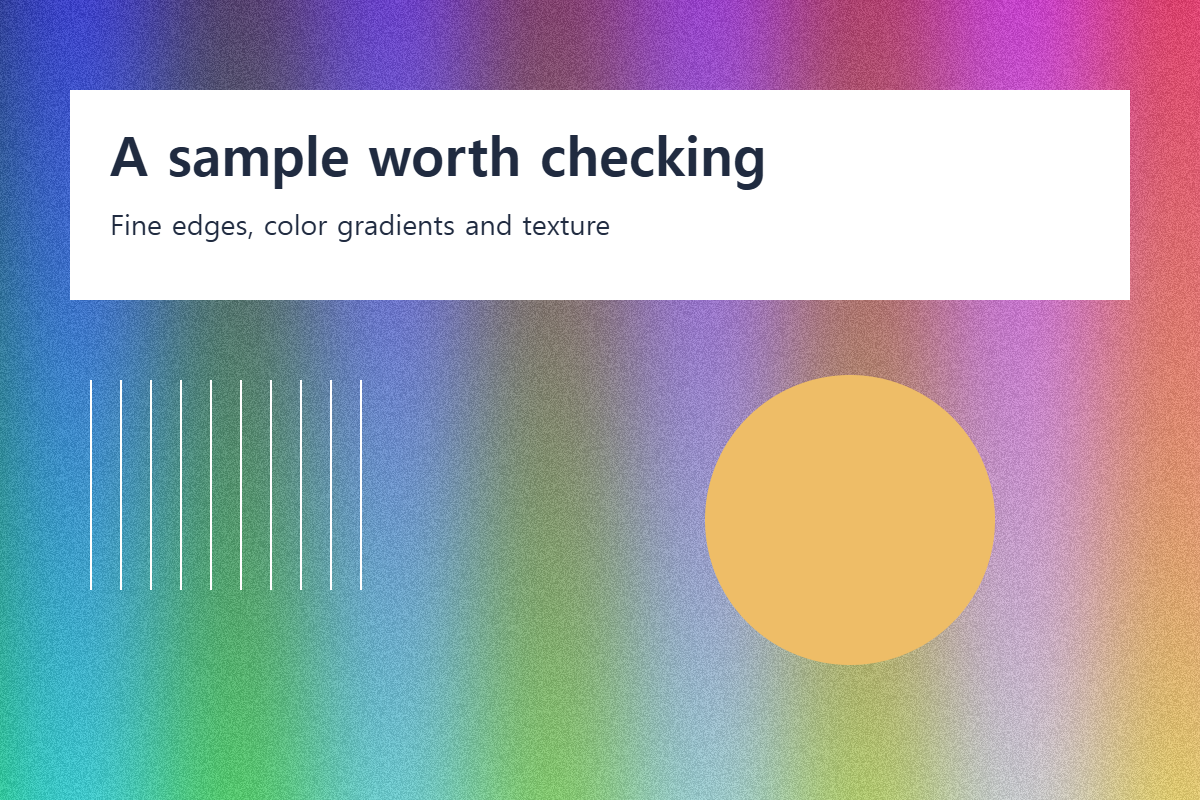
The same 1200 × 800 image was resized into a 600 × 600 bounding box.
Settings used
Max width 600, Max height 600, PNG output, enlargement off.
| File | Dimensions | Size |
|---|---|---|
| Original | 1200 × 800 | 1,005,708 bytes |
| Resized | 600 × 400 | 340,897 bytes |
The result is 600 × 400, preserving the original 3:2 ratio. A 600 × 600 square requires cropping as well as resizing.
Measured using the actual website editor in desktop Chrome 154.0.8037.98 on Windows. Files were created for this example; no user files were used.
This is a small synthetic example, not a benchmark for all files. Size, quality and compatibility depend on the source, settings, browser and device.
When something does not work
I entered 800 × 800 but received 800 × 600
Width and height form a maximum box. Proportions are preserved. Crop to a square first if a square result is required.
A smaller photo did not grow
Enable Allow enlarging smaller images only if upscaling is necessary. Extra pixels cannot recover detail from the source.
Check your saved result
- Verify width and height, not just how large the preview appears.
- Inspect logos and text for softness after downscaling.