 ImageSizeDock
Compress image
Compress JPG, PNG or WebP in your browser. Choose quality or a target size such as 100 KB, compare the result, and download up to 20 images as a ZIP.
Enable JavaScript to choose an image and use this tool. Processing happens on your device.
How to compress an image to a smaller file size
- Choose still JPG, PNG or WebP images, or drag them into the upload area. You can add up to 20 files.
- Select an output format. For photos, try JPG or WebP and adjust Quality. PNG preserves output pixels but may be larger.
- Optionally enter a Target file size in KB, or choose the 100 KB, 200 KB or 500 KB preset. Click Compress image or Compress images.
- Compare Original and Result, inspect dimensions and size, then use the individual download button or download all results as a ZIP.
Prepare a photo for a 200 KB upload limit
Choose a 1600 × 1200 JPG, keep JPG as the output, and select the 200 KB preset. Run compression and check the reported size. The tool may lower quality and dimensions to approach the target; if it reports that the target was not reached, the download still exceeds your limit.
Frequently asked questions
Can I compress an image to exactly 100 KB?
The 100 KB preset is a target maximum, not a promise of an exact size. The tool searches for a smaller result and can reduce dimensions. Check the displayed result and any target-not-reached message before uploading elsewhere.
Why did my PNG become larger?
PNG compression does not have the same lossy quality control as JPG or WebP. Already optimized images may not shrink when re-encoded. Try WebP or JPG for photos, or resize the image if you can use fewer pixels.
Will compression change my original file?
No. Processing creates a new download in your browser. Keep the original and compare the result, especially when a target size requires fewer pixels or lower quality.
Supported files and limits
Up to 20 still images, 20 MB and 40 megapixels per image, with a 100 MB batch limit. HEIC, SVG, GIF and animated files are not supported. Device memory can impose lower limits.
TESTED EXAMPLE · October 9, 2026
Compare JPG and WebP on the same textured image
We created a 1200 × 800 PNG containing gradients, fine lines and lettering, then exported it twice with this tool.
Settings used
Quality 82%, no target file-size limit, original dimensions. One JPG export and one WebP export.
| File | Measured size | Dimensions |
|---|---|---|
| Original PNG | 1,005,708 bytes | 1200 × 800 |
| JPG at 82% | 189,636 bytes | 1200 × 800 |
| WEBP at 82% | 173,436 bytes | 1200 × 800 |
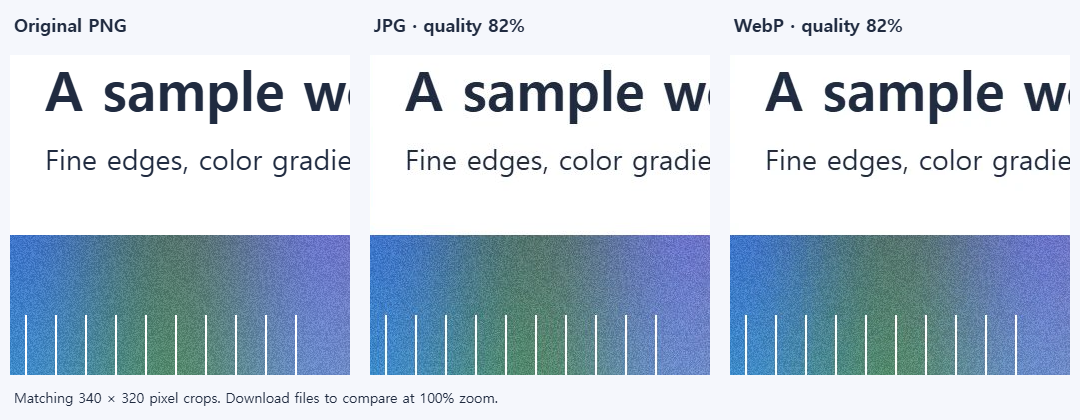
Both exports kept the dimensions. Compare the lettering and fine lines before choosing the smaller file; a lower byte count alone does not establish acceptable quality.
Measured using the actual website editor in desktop Chrome 154.0.8037.98 on Windows. Files were created for this example; no user files were used.
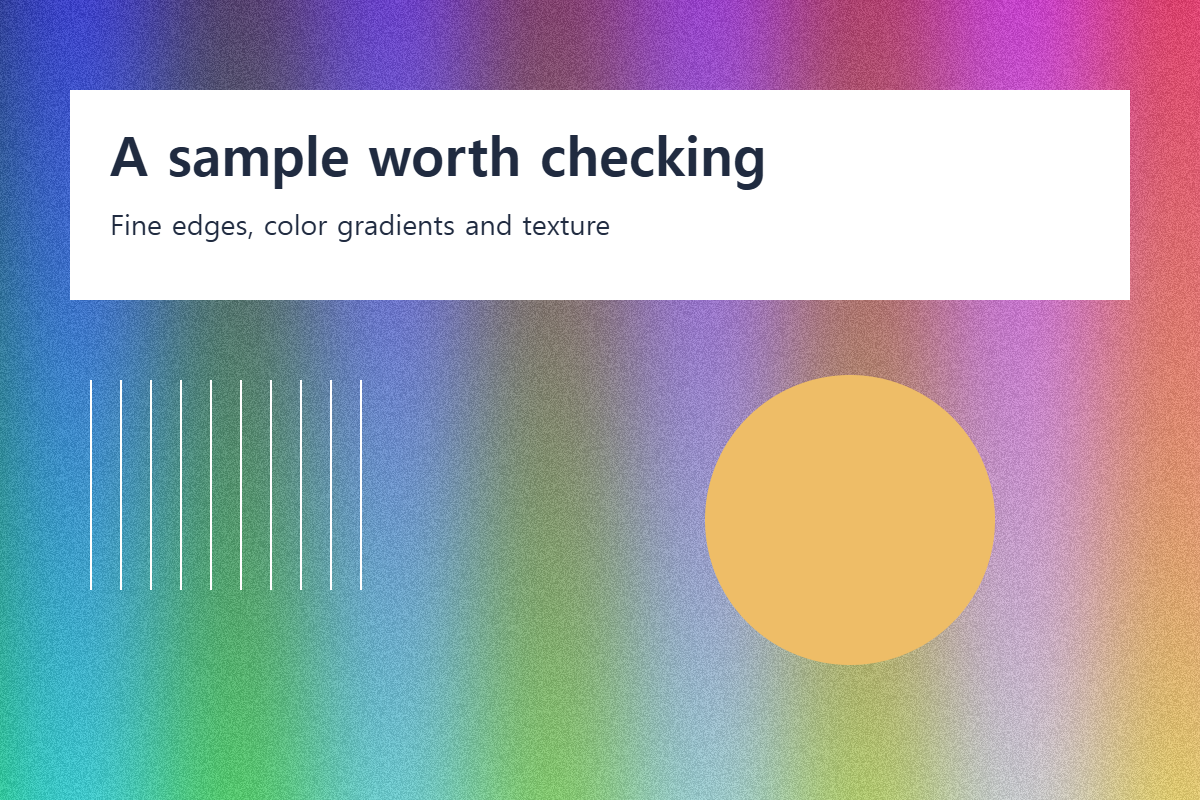
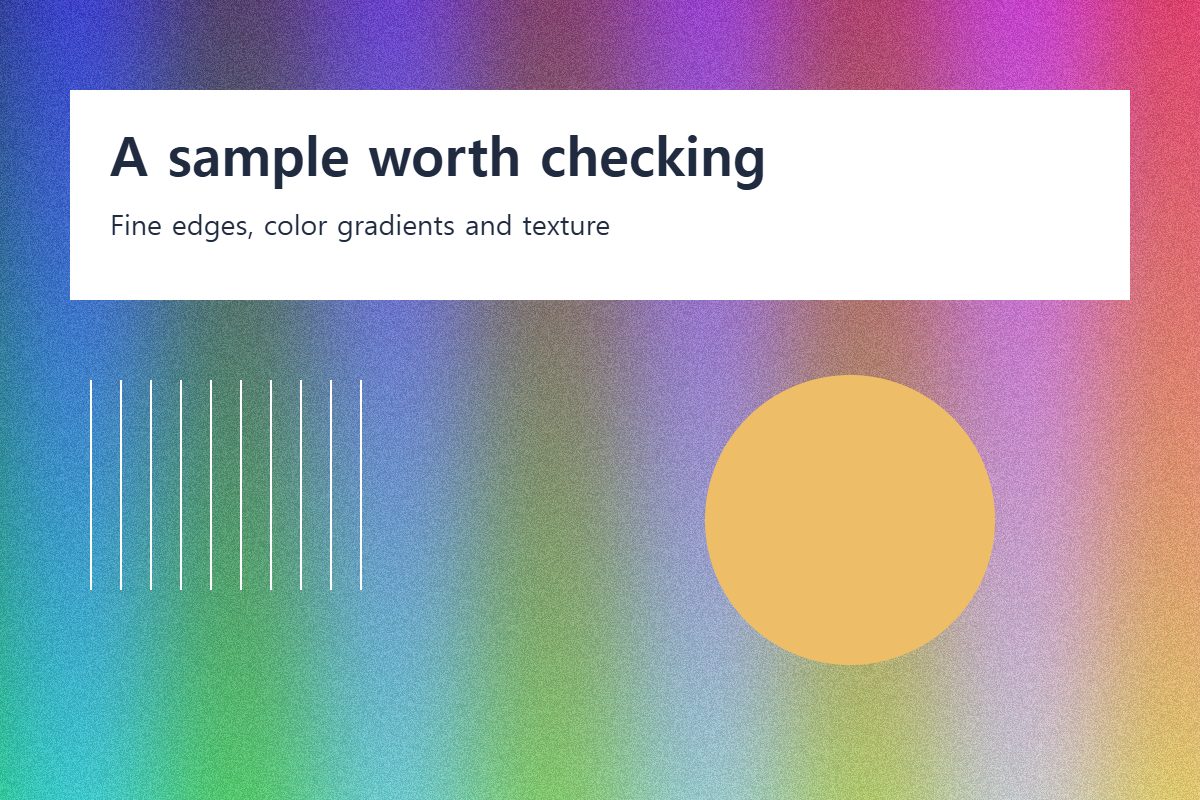
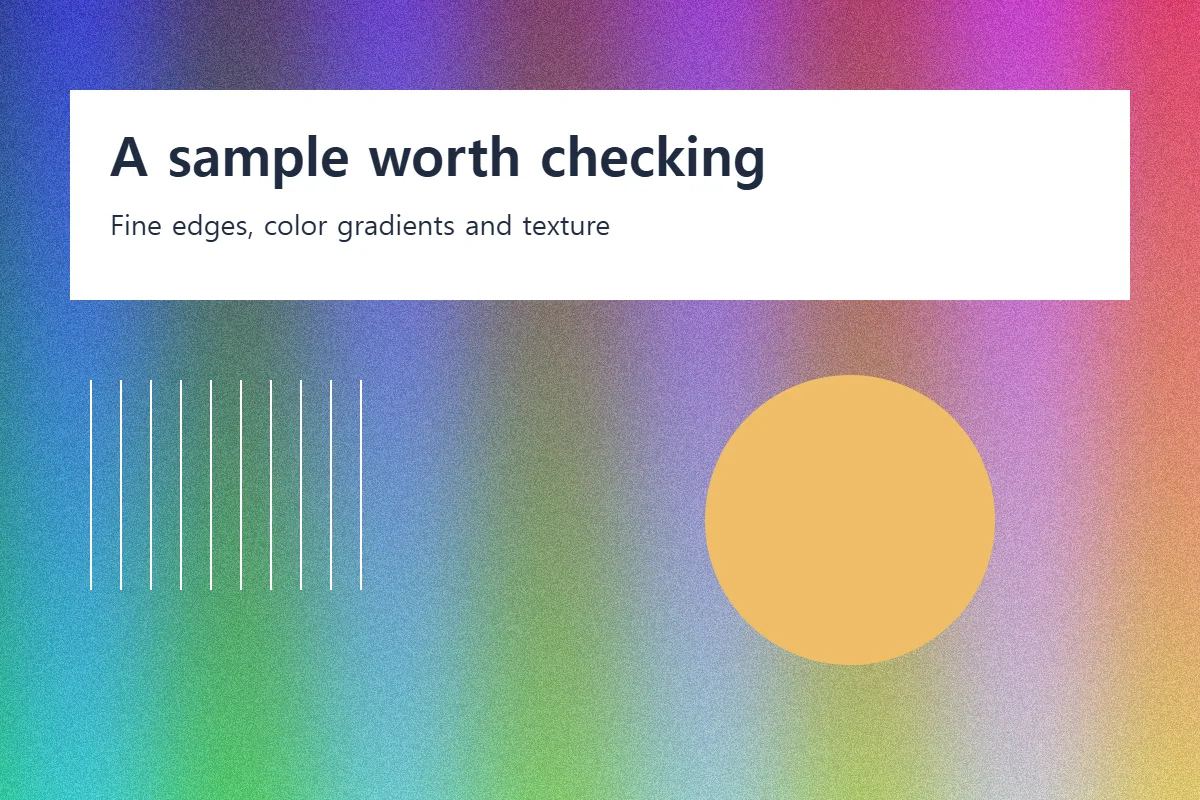
This is a small synthetic example, not a benchmark for all files. Size, quality and compatibility depend on the source, settings, browser and device.
When something does not work
The target size was not reached
Check the warning and actual output bytes. A very small target may require fewer pixels; use Resize image first or increase the target. The original file is not replaced.
Fine text looks damaged after compression
Lossy JPG or WebP can introduce edge artifacts. Raise quality or use PNG for diagrams, then reduce dimensions only if the text remains readable.
Check your saved result
- Compare at 100% zoom, especially text and high-contrast edges.
- Check dimensions as well as bytes: target-size compression can reduce both.