 ImageSizeDock
Convert image
Convert JPG, PNG and WebP locally in your browser. Keep transparency with PNG or WebP, choose a background for JPG, and batch-download converted images.
Enable JavaScript to choose an image and use this tool. Processing happens on your device.
How to convert JPG, PNG and WebP images
- Add the still images you want to convert. A batch may include different supported formats.
- Select JPG, PNG or WebP under Output format. For JPG or WebP, choose a quality level.
- If exporting to JPG, set the color for transparent areas. Click Convert image or Convert images.
- Inspect the preview and resulting file size. Download a single converted image or use the ZIP download for the batch.
Turn a transparent PNG logo into a JPG
Select your PNG, choose JPG as the output and use a white JPG background. Convert the image. Transparent areas become white, so inspect the edges before downloading. Choose PNG or WebP instead if you need to keep transparency.
Frequently asked questions
Does converting JPG to PNG improve quality?
No. PNG can preserve the decoded pixels in the new file, but it cannot restore detail already lost to JPG compression. The PNG file may also be much larger.
Can I convert HEIC or animated GIF files?
Not with this tool. It accepts still JPG, PNG and WebP. Convert unsupported formats with an appropriate tool first; animated PNG and WebP are also rejected.
Are EXIF fields preserved?
The output is encoded from decoded image pixels. Original EXIF fields are not copied. Colors and metadata may differ, so keep the original if you need its camera or editing information.
Supported files and limits
Up to 20 still images, 20 MB and 40 megapixels per image, and 100 MB per batch. JPG cannot preserve transparency. A format change does not guarantee a smaller file.
TESTED EXAMPLE · October 9, 2026
Choose a format by comparing actual output
These exports were made with the Compress image tool, using the same encoding engine as format conversion. They show why a format choice should be checked on your own image.
Settings used
Quality 82%, no target file-size limit, original dimensions. One JPG export and one WebP export.
| File | Measured size | Dimensions |
|---|---|---|
| Original PNG | 1,005,708 bytes | 1200 × 800 |
| JPG at 82% | 189,636 bytes | 1200 × 800 |
| WEBP at 82% | 173,436 bytes | 1200 × 800 |
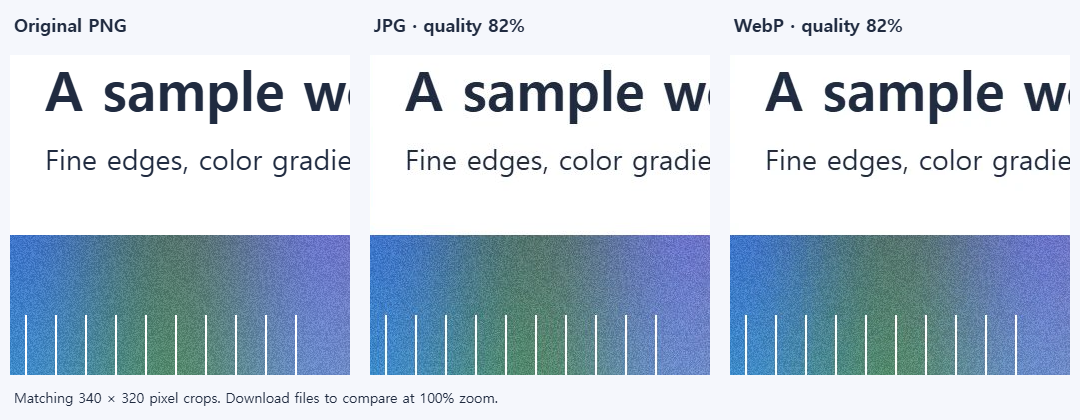
Both exports kept the dimensions. Compare the lettering and fine lines before choosing the smaller file; a lower byte count alone does not establish acceptable quality.
Measured using the actual website editor in desktop Chrome 154.0.8037.98 on Windows. Files were created for this example; no user files were used.
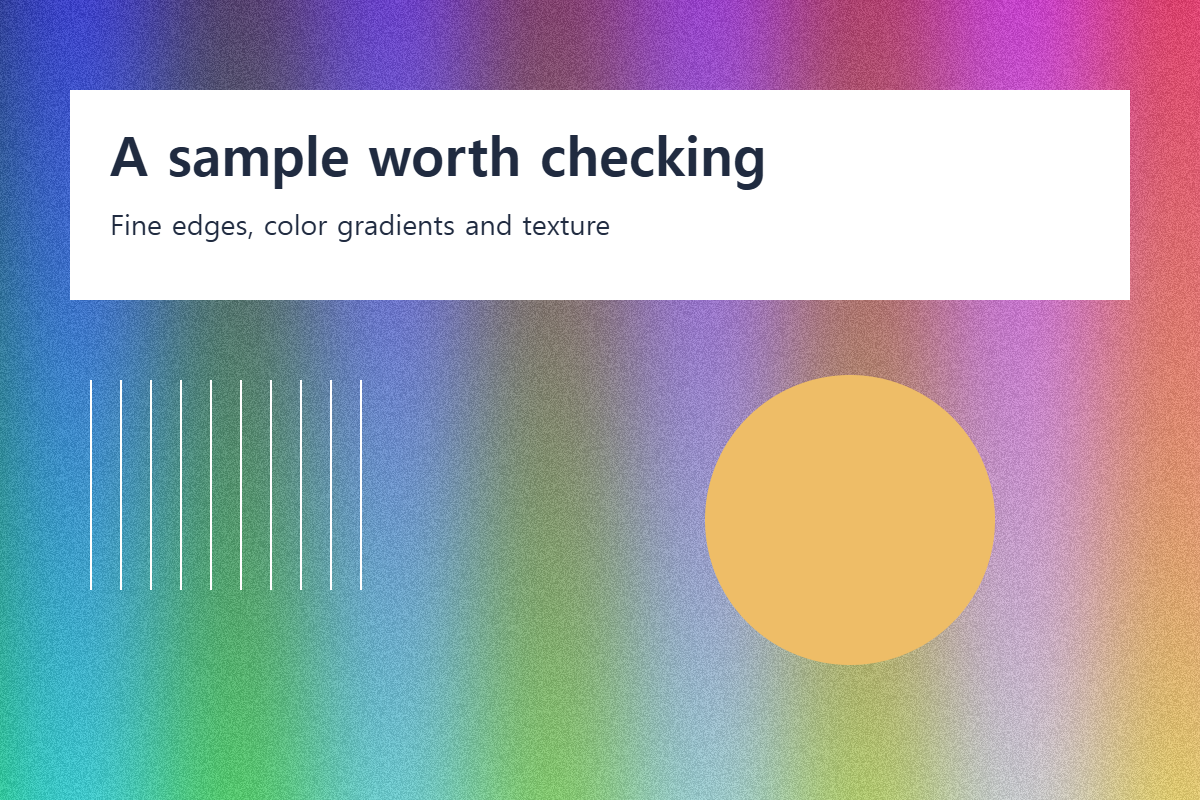
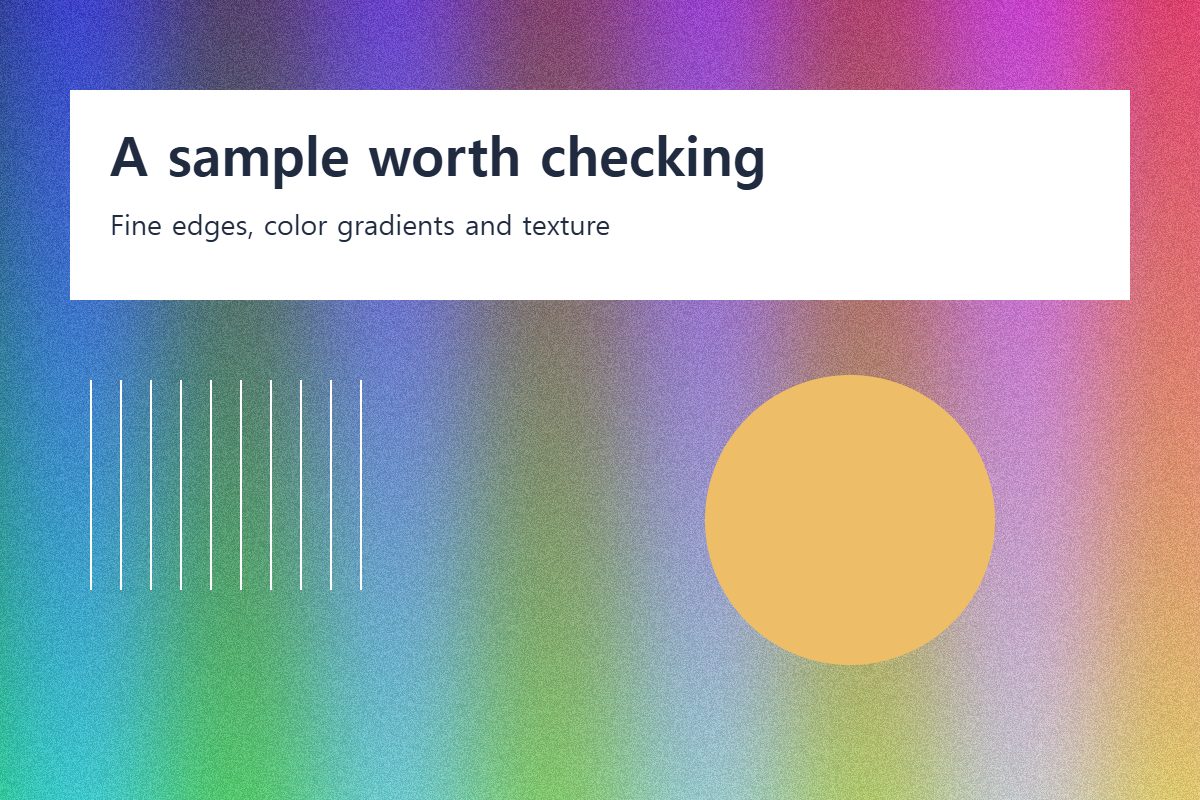
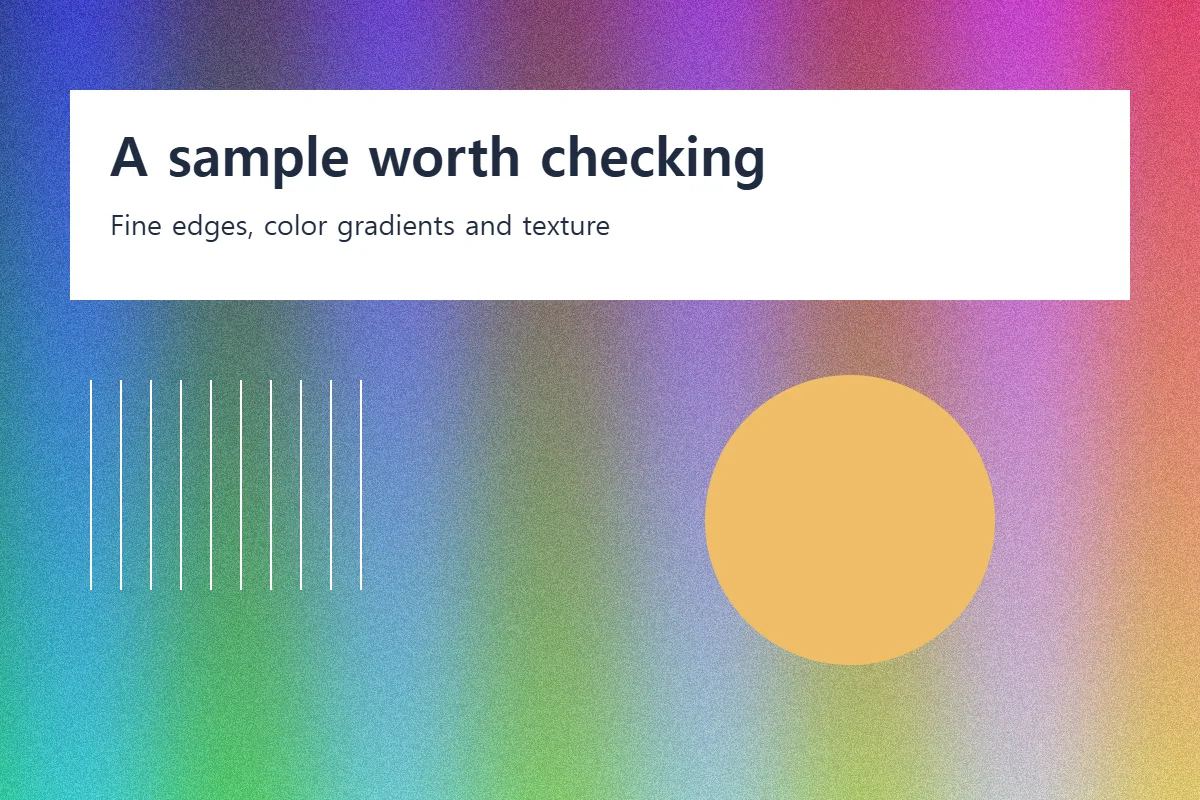
This is a small synthetic example, not a benchmark for all files. Size, quality and compatibility depend on the source, settings, browser and device.
When something does not work
The converted file is larger
Changing the format does not guarantee compression. PNG is often larger than JPG for photos. Compare JPG and WebP at a suitable quality for your destination.
Transparency disappeared
JPG has no alpha channel; transparent pixels are filled with your chosen background. Choose PNG or WebP to keep transparency.
Check your saved result
- Open the saved file in the destination app to confirm format support.
- Check color, transparent edges and file size. Original EXIF information is not copied.